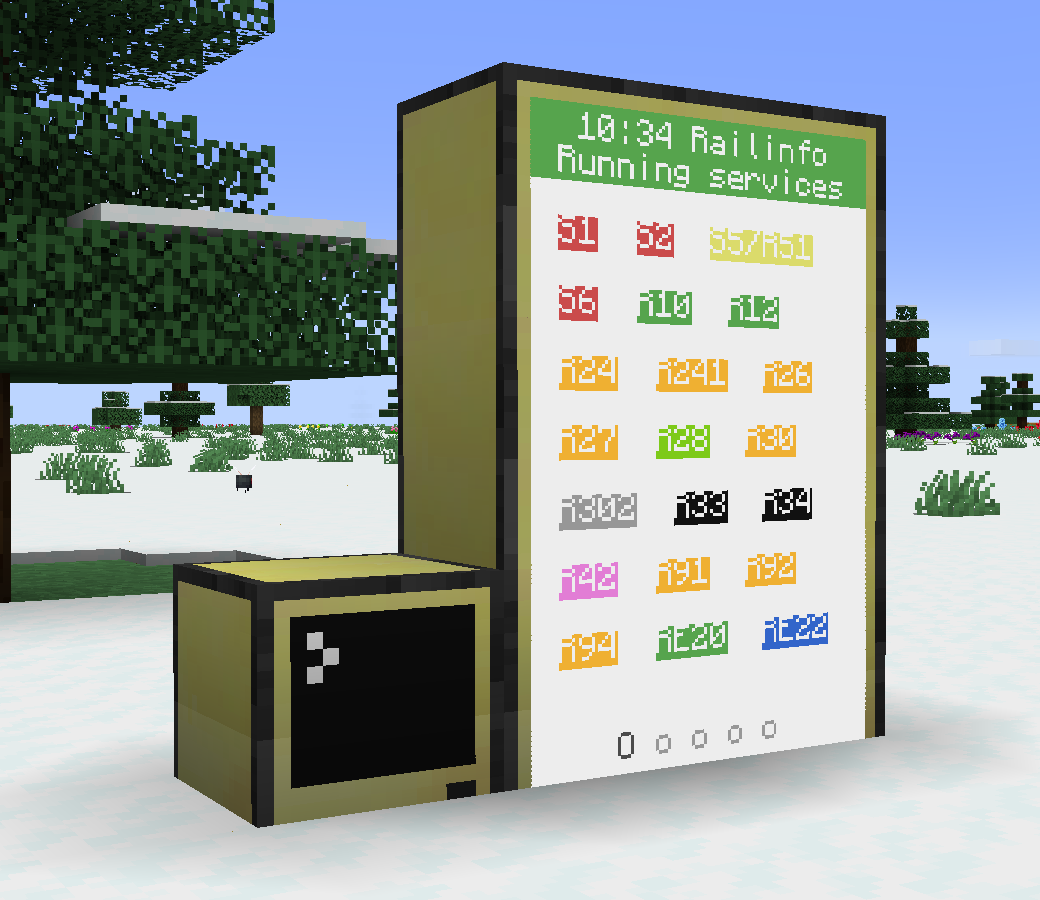
Welcome to the ComputerCraft station display setup page! This guide will help you set up your station display using ComputerCraft in Minecraft.
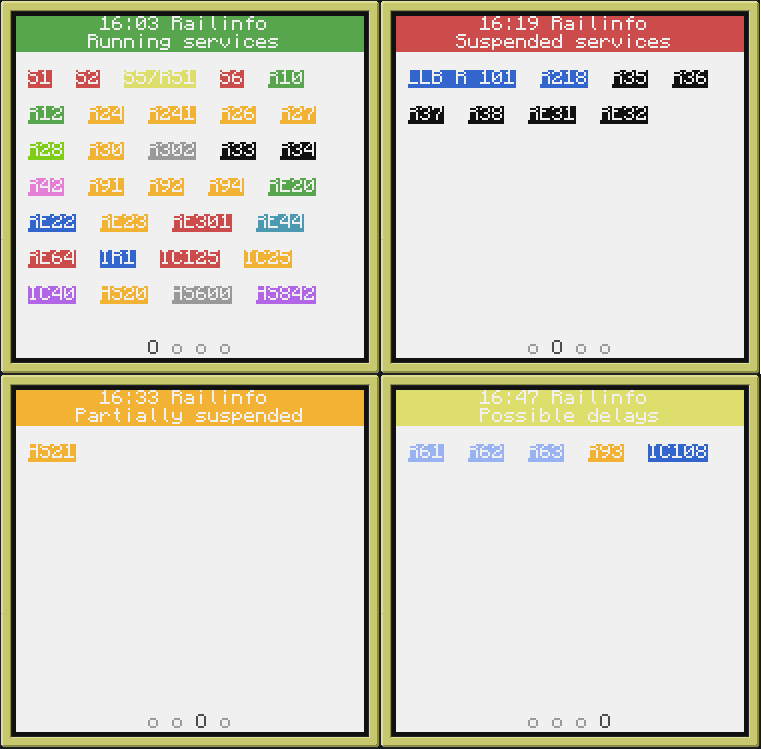
To set up the ComputerCraft station display, follow these steps:
 info
Starting with version 2.0.0, it is also possible to upsize the display to a 3x2 grid or bigger. Please do notice that I only
tested the 2x3 and 3x2 setups myself, so if you run into any issues with bigger setups, please let me know via Discord.
info
Starting with version 2.0.0, it is also possible to upsize the display to a 3x2 grid or bigger. Please do notice that I only
tested the 2x3 and 3x2 setups myself, so if you run into any issues with bigger setups, please let me know via Discord.
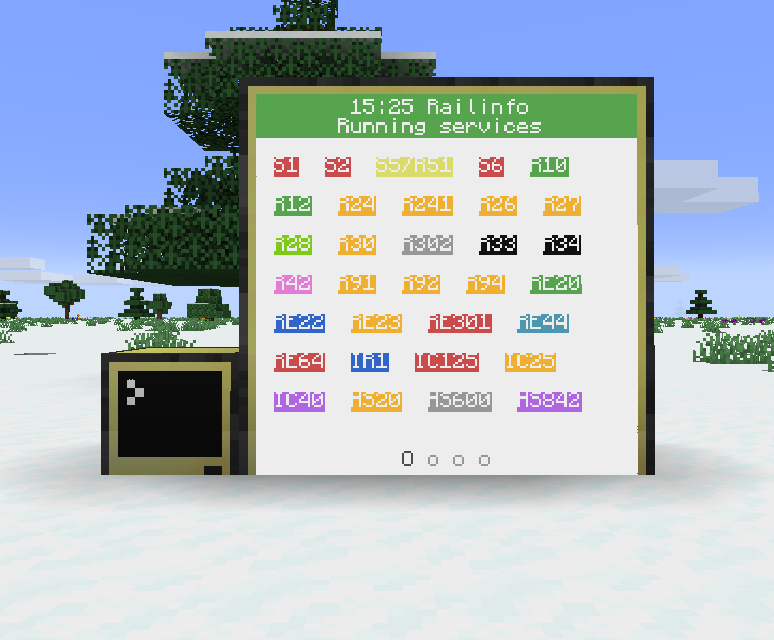
wget run https://railinfo.juliandev02.me/setup.lua
info
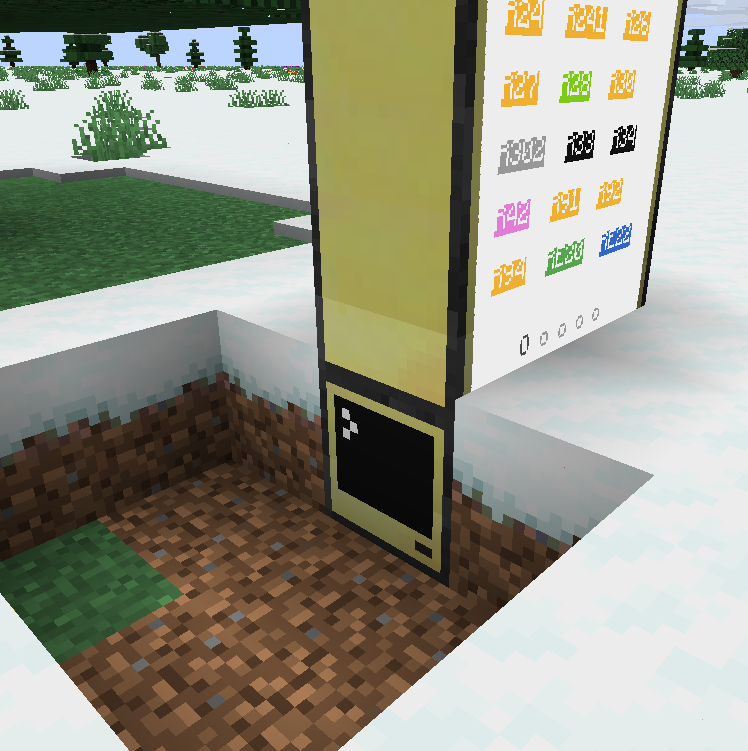
It is possible to connect multiple monitors to a single computer. The startup script is designed
to detect the number of connected monitors and adjust the display accordingly.
You can use a cable modem to connect the computer to the monitors.
→ The script automatically fetches the latest lines from
https://railinfo.juliandev02.me/api/lines
every time the computer is restarted (manually or after a server restart, which happens every 6 hours)